


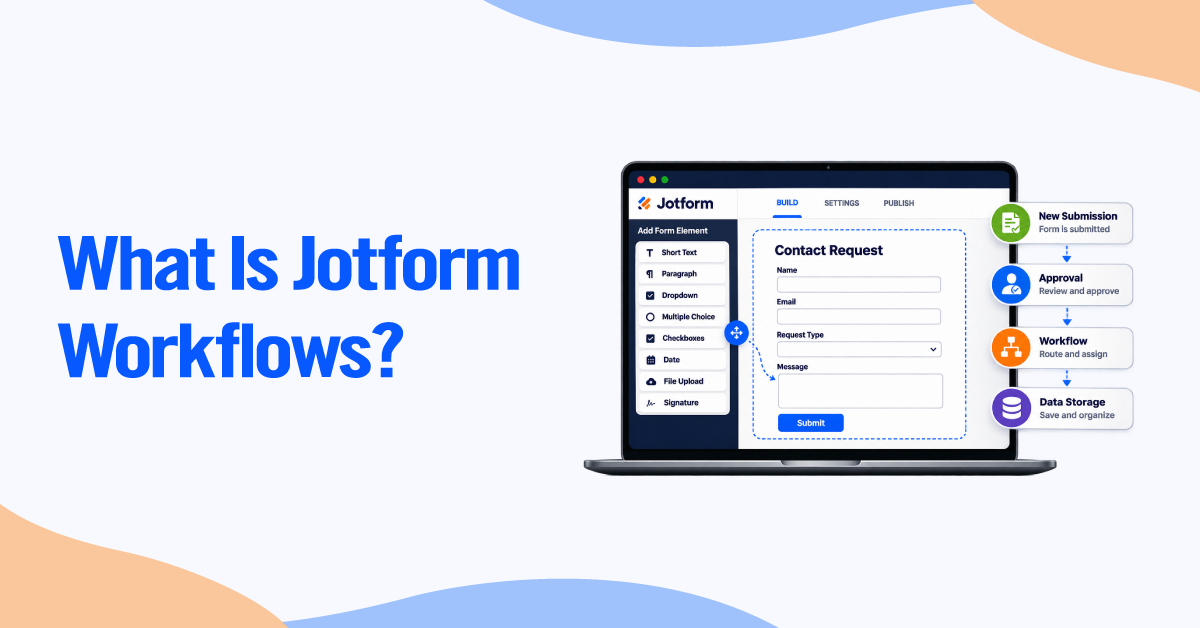
TL;DR
- A no-code tool that turns one form submission into an automated flow of approvals, tasks, emails, payments, e-signatures, and integrations.
- The evolved, broader version of Jotform Approvals, so nothing was removed if you only see Workflows now.
- A form submission is the trigger, and each element runs in the order you connect it.
- Included with every plan, including free, but real usage is capped by form and monthly submission limits.
- Use the Preview feature (formerly Test Run) to simulate a submission and catch a broken flow before going live.
Jotform is an online tool that helps you create forms and collect information, payments, signatures, registrations, feedback, and requests without coding. You can choose a template, edit it with a simple drag-and-drop builder, and share the form by link, email, website, or QR code.
But collecting a response is often only the first step. You may also need to review it, get approval, share it with your team, create a document, or send the information to another app. Jotform offers tools to manage these tasks, including Jotform Workflows, which is the updated version of Jotform Approvals.
Jotform is the main platform for creating forms, while Workflows helps manage what happens before or after someone submits a form. This article explains how Jotform works, its main features, pricing, common uses, and limits.
How Jotform Workflows Works
Jotform Workflows follows a simple trigger-and-step process. The trigger is usually a form submission. After someone submits the form, the workflow starts and follows the steps you connected on the canvas.
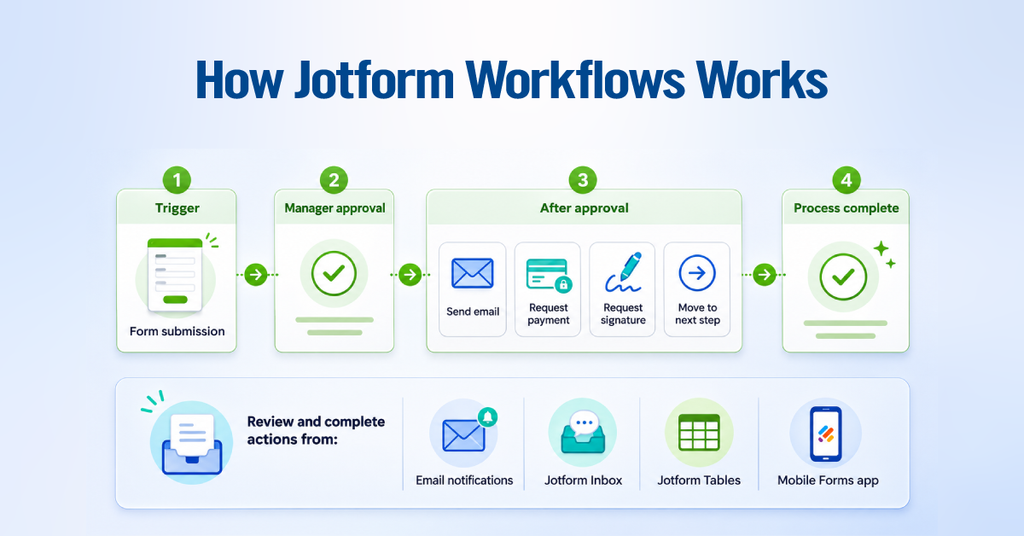
For example, a submission can first go to a manager for approval. After approval, Jotform can send an email, request payment, ask for a signature, or move the information to the next step. The submission continues through the workflow until the process is complete.
Approvers and team members do not need to keep checking with each other manually. They can review and complete their assigned actions from any of these places.
- Email notifications
- Jotform Inbox on desktop
- Jotform Tables, where the submitted data is stored
- The Jotform Mobile Forms app
What Happened to Jotform Approvals?
Approvals did not disappear. It became one part of the broader Workflows product, so your approval logic still exists, it just lives inside a larger toolset now.
Since its debut in 2024, Workflows absorbed the old Approvals feature set and then added a meaningful set of capabilities on top of it. The rename was an expansion, not a removal. If your muscle memory says “Approvals,” you are simply using a subset of what Workflows can now do.
Here is what the shift added beyond plain sign-offs.
- Parallel processing, so several steps can run at the same time instead of one after another
- Conditional logic that branches the path based on how a field was answered
- Native third-party integrations into tools your team already uses
- Follow-up forms that can be dropped directly into the sequence
The Building Blocks Inside the Workflow Builder
The Workflow Builder uses a drag-and-drop canvas. You choose an element from the panel on the left, place it on the canvas, and connect it to other elements with arrows. These connections show the path each form submission will follow.
The panel is divided into three tabs: Basic, Logic, and Integrations. Together, they contain the main tools you need to build a workflow.
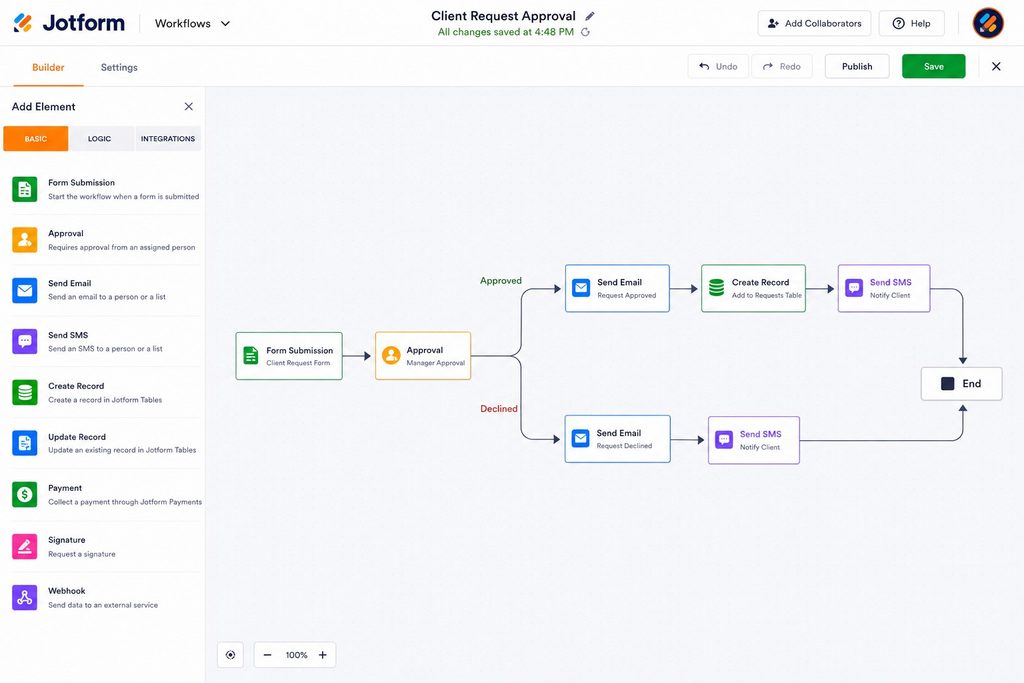
Tasks that once required separate approval settings, extra form fields, several email alerts, or complex conditions can now be added as individual blocks. If a block is missing an important setting, a small red warning marker appears to show that it is not ready to use.
Below is a breakdown of the available blocks, grouped in the same way they appear inside the builder.
1. Basic elements
These are the action blocks that do visible work when a submission reaches them.
- Approval. Handles a decision from a single reviewer. Approve and Deny are the defaults, but you can add custom outcomes and chain multistep or parallel approvals, for example, HR first and then IT.
- Team Approval. Routes a request to a defined group and lets you set the rule, such as requiring one person, a majority, a specific number, or everyone. Members respond independently, and you track activity in the Inbox or Tables.
- Task. Assigns a specific duty to an individual, from a checklist item to data entry to a review. The assignee can comment and upload files right on the task.
- Approve/Sign and Sign Document. Approve/Sign captures a legally binding signature at the moment the reviewer approves or denies, straight from their email or Inbox. Sign Document sends a full document for signature via Jotform Sign, which is well-suited for contracts and agreements.
- Form and Payment Form. Form drops a follow-up form into the sequence to gather more input, and its data can feed later integrations. Payment Form requests money at any point in the flow using one of 40-plus processors such as Stripe, PayPal, Square, and Authorize.Net, with no extra Jotform surcharge.
- Email and PDF. Email sends notifications, autoresponders, and reminders to staff or respondents. PDF auto-generates a document from form and task data, enabling teams to produce invoices, receipts, and reports without manual formatting.
- Flow Report. Creates a detailed summary of an ongoing or completed workflow, useful for oversight and an audit trail.
2. Logic elements
These are the blocks that let the system think and route data rather than run in a straight line.
- If/Else conditions. Make an automatic decision from a field answer, then send the submission down the matching path. A common pattern routes any expense over $1,000 to a second approver while smaller amounts clear on the first sign-off.
- Split and Merge branches. Split runs several branches at once, for example, sending a file to HR and Finance at the exact same time. Merge reconverges those parallel paths so the process stays tidy before the next step.
- Pause. Holds the flow until a set date, time, or duration has passed, preventing an action from firing too early. The workflow owner can also resume it early from the Inbox.
- Webhook. Pushes real-time data from a workflow step out to an external system, replacing the old habit of hiding links inside email notifications.
- End. Sets a visual signal that a branch is complete, or terminates the flow entirely.
Pause and Webhook are recent additions from a January 2026 update, alongside the Preview simulator. They close two long-standing gaps, namely precise timing control and a clean, formal handoff of data to outside apps.
3. Third-party integrations
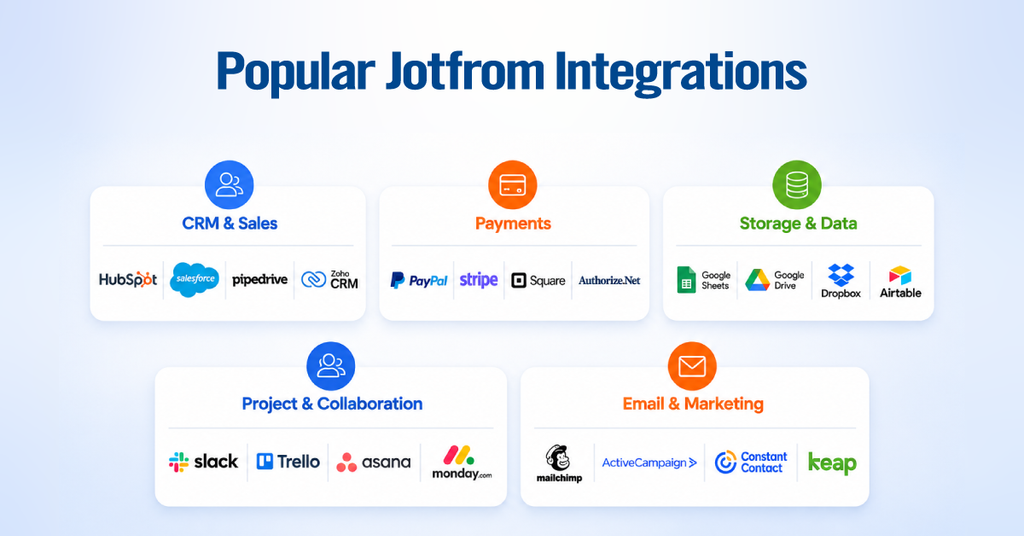
Jotform Workflows connects natively to the stack your team already runs, so data does not get stranded inside Jotform. From the Integrations tab, you can wire in tools like Slack, Microsoft Teams, Google Drive, Dropbox, Airtable, Asana, and monday.com, then have a workflow post a message, send a file, create a calendar event, or add a record on its own. The detail that reduces noise is conditional firing, which means an integration action runs only when the conditions you set are met, rather than on every submission.
Is Jotform Workflows Free? What It Really Costs
Yes, Jotform Workflows is free to use. It is included with every Jotform account rather than sold as a separate add-on, so even the free Starter plan can build approvals, tasks, e-signatures, payments, and integrations. What you are really paying for is not the feature, but the capacity.
The cost comes from Jotform’s plan limits, and the platform runs several usage meters in parallel. Forms, monthly submissions, storage, form views, payment submissions, and signed documents each have their own ceiling, and the first meter you fill is what forces an upgrade. Paid tiers simply raise those ceilings and, from the entry paid plan up, remove Jotform branding. The table below breaks down the current plans and limits.
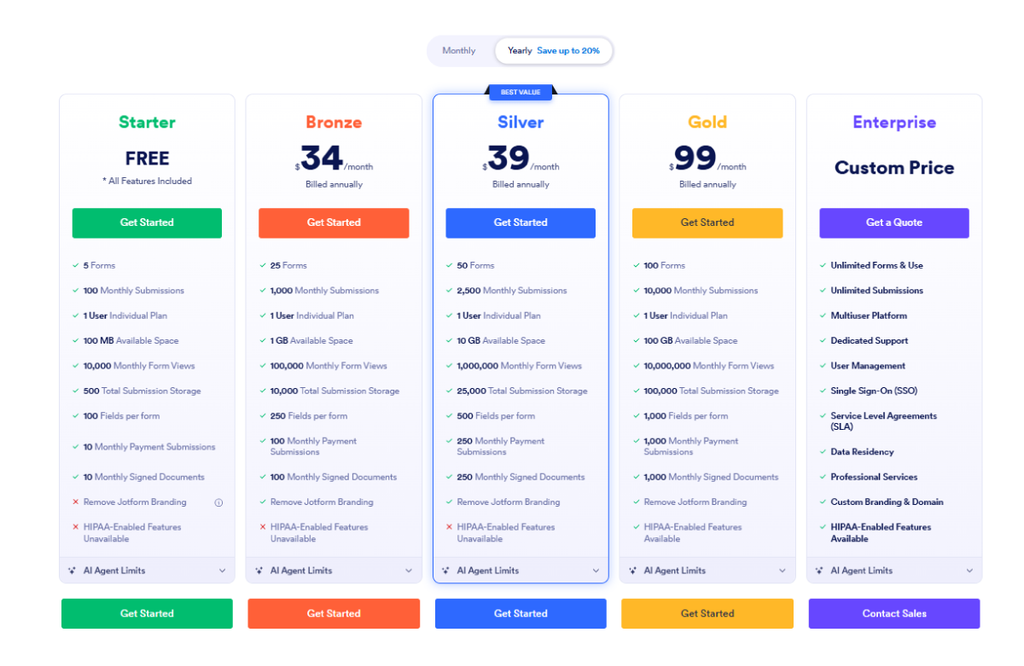
For most active teams, the meter that fills first is monthly submissions, not form count. The free tier’s 100 submissions and 100 MB of storage are enough to test the product or run one low-traffic internal form, but anything customer-facing tends to outgrow it quickly. Size your plan to your busiest month rather than your average one, because a single strong campaign will hit the cap and pause your forms until the counter resets.
For money moving through a workflow, Jotform does not add its own surcharge on payments. You connect one of Jotform’s built-in payment processors and pay only that provider’s standard processing fee, for example, the usual Stripe or PayPal rate.
How to Build and Test Your First Workflow
Creating a Jotform workflow is easier when you break the process into three steps: starting the workflow, adding the actions, and testing everything before making it live.
1. Start the workflow
Open the form you want to use in the Jotform Form Builder. Go to Settings, select Workflows, and click Create Workflow.
This connects the workflow to your form. From that point, each new form submission can automatically start the process.
2. Add and connect the steps
The workflow opens on a visual canvas. Drag the elements you need onto the canvas and connect them with arrows to show the order in which they should run.
For example, you might add an Approval step first, followed by an Email step. This means the submission must be reviewed before the email is sent.
Each element also needs to be set up. For an approval step, you choose who should review the request. For an email step, you add the recipient, subject line, and message.
3. Preview the workflow
Before using the workflow with real submissions, run a preview. This feature, which some users may remember as Test Run, allows you to submit sample information and watch the workflow move through each step.
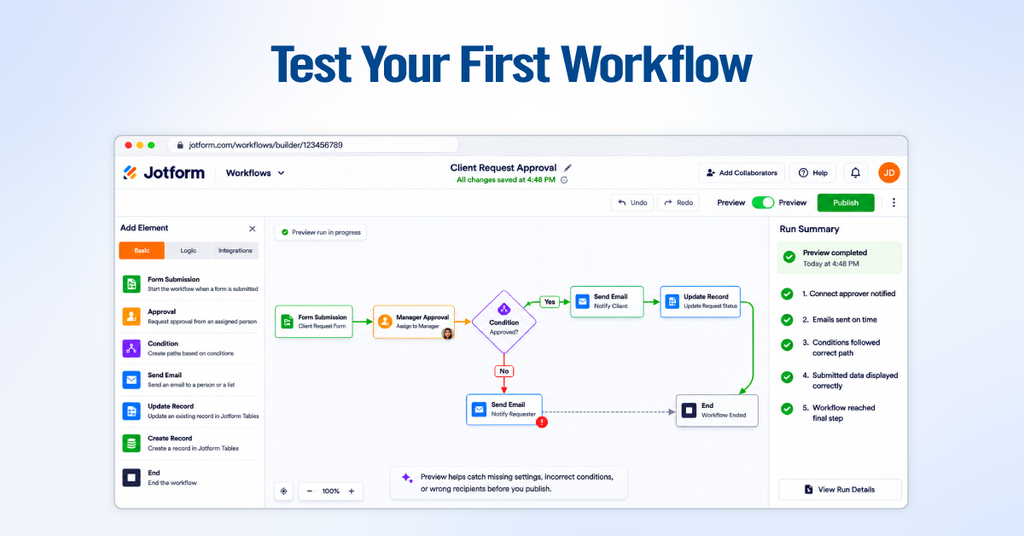
During the preview, confirm each of these points.
- The correct person receives the approval request
- Emails are sent at the right time
- Conditions follow the correct path
- The submitted information appears correctly
- The workflow reaches the expected final step
When the preview ends, the Run Summary shows what happened during the test.
Testing is important because a workflow can look correct on the canvas but still contain a missing setting, incorrect condition, or wrong recipient. A preview helps you find those problems before they affect a real submission.
Where Teams Usually Get Stuck
The basic workflow is easy to build. The problems usually appear when you try to match it to a real business process.
Sending someone to a different form. You may want a respondent to open a second form based on one answer. This is possible, but it requires a conditional branch connected to another Form element. The setup is simple once you know where the logic belongs, but it is easy to miss when building your first workflow.
Giving approvers a direct link to pending requests. Approvers do not want to search through Jotform every time they need to review something. They usually need a direct route to their pending items, either through Jotform Inbox or a link included in the approval email. The best option depends on whether reviewers have Jotform accounts and how much access they should receive.
Using scores or ratings instead of approve or deny. Many review processes need more than a yes-or-no decision. A manager may need to assign a score, choose from several outcomes, or add feedback. In that case, the approval step must be adjusted to include custom outcomes rather than using the default approve-or-deny setup.
Preventing duplicate or conflicting emails. This is one of the easiest problems to overlook. A form may already have conditional emails, while the new workflow sends its own notifications. If both remain active, recipients can receive duplicate, mistimed, or conflicting messages.
The fix is to decide which part of Jotform controls each notification and remove any overlap. These issues are all solvable, but they often take much longer when the workflow has been built without a clear structure. An experienced Jotform consultant can usually identify the conflict quickly and simplify the setup before it affects real submissions.
Final Thought
Jotform Workflows earns its place because it collapses a scattered chain of manual steps, chasing approvals, forwarding emails, and requesting signatures into one automated path that runs itself on every submission.
The product is genuinely capable out of the box, and the free tier is enough to prove the concept before you commit to the budget. Where the value compounds is in the design decisions, the branching, the parallel steps, and the clean handoffs to your other tools.
Get those right early, preview before you launch, and the automation quietly does the work you used to do by hand.